
The Bulk Price Updater allows you to quickly update the pricing of multiple menu items and option items in a single action, removing the need to edit items individually. You can increase or decrease prices by either a percentage or a fixed value, giving you flexibility to apply menu-wide pricing changes. The tool also allows you to refine updates by including or excluding specific menu groups, menu items, and option items, ensuring changes are applied only where needed.
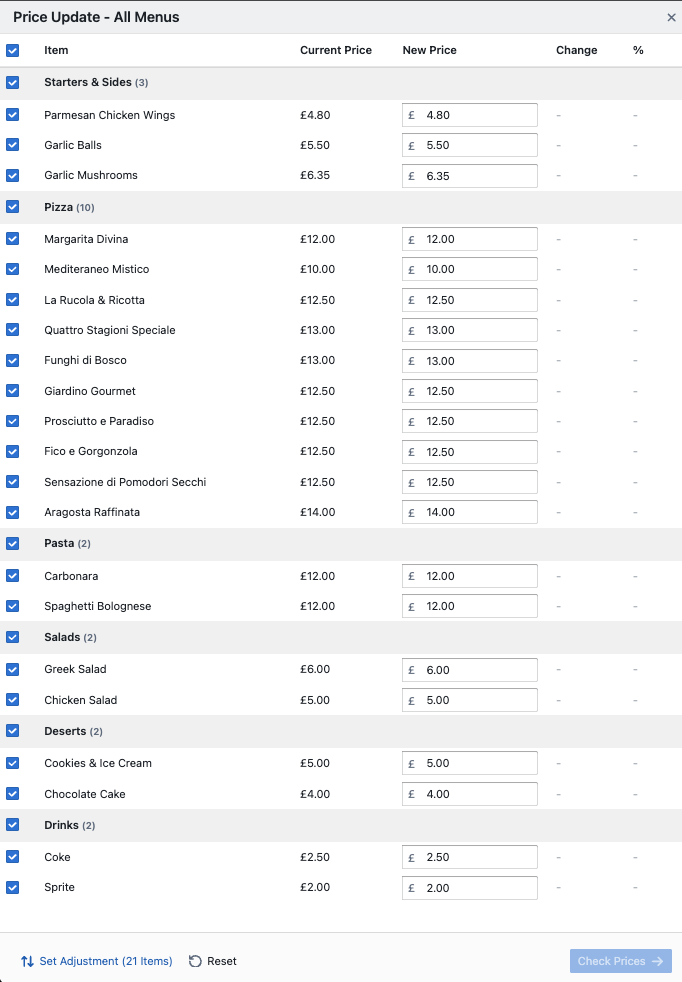
How to Locate Bulk Update Prices Tool
Menu
How to locate Menu Bulk Price Updater for the entire menu: Redbox → Businesses → Select a Business → Menu
Updating all menu items:
-
Select ‘Update All Prices’
Updating menu items in a specific menu group:
-
Select the three dots next to a menu group name.
-
Select ‘Update Menu Prices’
Options
How to locate Menu Bulk Price Updater for specific option groups: Redbox → Businesses → Select a Business → Options
Updating All Prices of Option Items:
-
Select ‘Update All Prices’
Updating Option Items In a Specific Option Group:
-
Select the three dots next to a option group name.
-
Select ‘Update Option Prices’
Setting an Adjustment
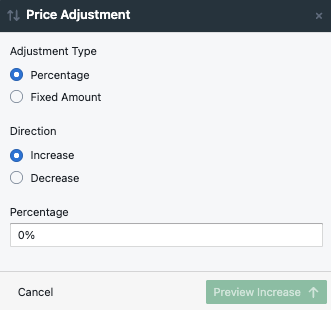
Here, you can choose the adjustment method—such as increasing or decreasing prices by a fixed amount or percentage—so you have full control over how updates are calculated across selected menu/option items, groups, or the entire menu.
-
Select ‘Set Adjustment’.
-
Choose your ‘Adjustment Type’:
-
Percentage - increase or decrease all prices by a percentage (e.g +10%)
-
Fixed Amount - increase or decrease all proces by a flat amount (e.g +£0.50)
-
-
Choose the ‘Direction’:
-
Increase
-
Decrease
-
-
Enter the value
-
Select ‘Preview’
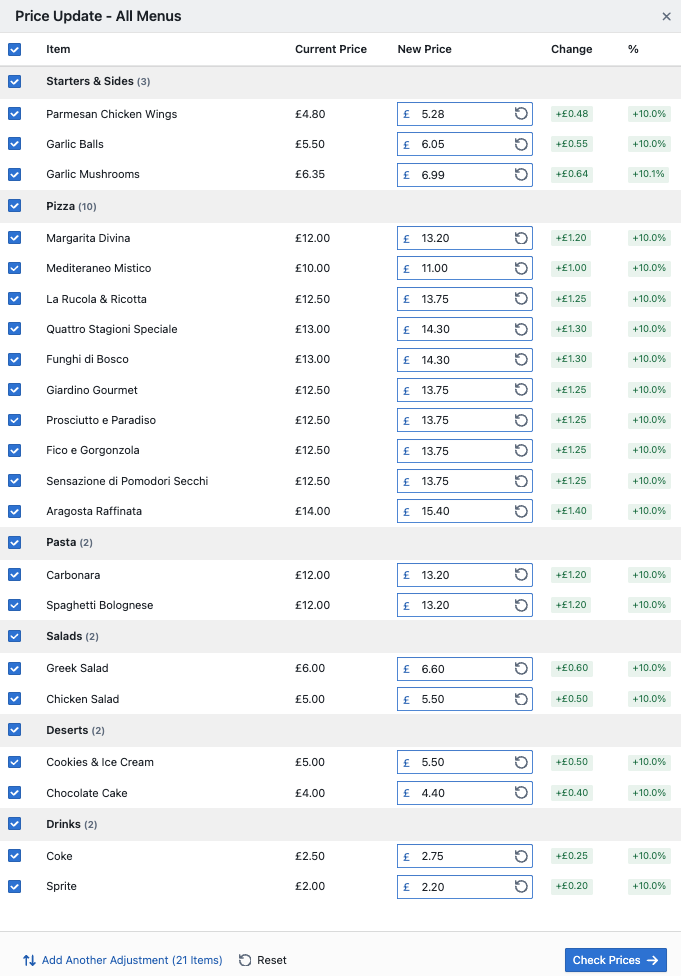
Once you’ve set your adjustments, a preview will be displayed showing the new calculated item prices (New Price), the value change applied (e.g. +£0.50), and the corresponding percentage increase or decrease (e.g. +10%), allowing you to review the impact before applying the changes.
Fine-Tuning Adjustments
Refine and control your pricing changes after a bulk update has been applied. It provides flexible tools to make item-level edits, exclude items or groups, or reset all changes, ensuring you can fine-tune your menu prices with precision before finalising your updates.
-
Edit individual items – Manually adjust the price of specific items after the bulk update has been applied, giving you precise control over final pricing.
-
Reset an item – Revert the item to its original price before any bulk adjustments are confirmed.
-
Exclude items – Remove specific items from the adjustment so they are not affected by the current pricing change.
-
Stack new adjustments – Apply additional adjustments on top of existing ones, allowing you to layer multiple pricing changes incrementally.
-
Reset all adjustments – Undo all applied changes in one action, restoring every items to its original price so you can restart the process from scratch.
Warnings Explained
Scenarios that may occur during bulk price adjustments, helping you identify items that require extra attention before finalising your changes:
-
£0.00 items – Percentage adjustments do not affect items priced at £0.00. These items will display a warning icon to indicate no change has been applied.
-
Large changes – Any item with a price change of 50% or more will be highlighted in orange, allowing you to easily review and verify significant adjustments.
-
Below zero – If a price decrease would result in a value below £0.00, the system will automatically clamp the price to £0.00 and display a warning icon next to the affected items.
Completing the Adjustment
Once all adjustments have been made, a final review is required before they are applied. This step allows you to carefully check all pricing changes and ensure everything is correct. Once confirmed and applied, you can also download a CSV file of the changes for record-keeping or further analysis.
-
Finish applying adjustments
-
Select ‘Check Prices’
-
Once you have reviewed the adjustments, select ‘Update’
-
Download the adjustments by selecting the ‘Download Changes’ button
-
Select ‘Done’