
Only available for customers using iOS Mobile 7.04+.
Mobile 7.0.4+ will fail to build until the Live Activity Widget has been configured in Apple.
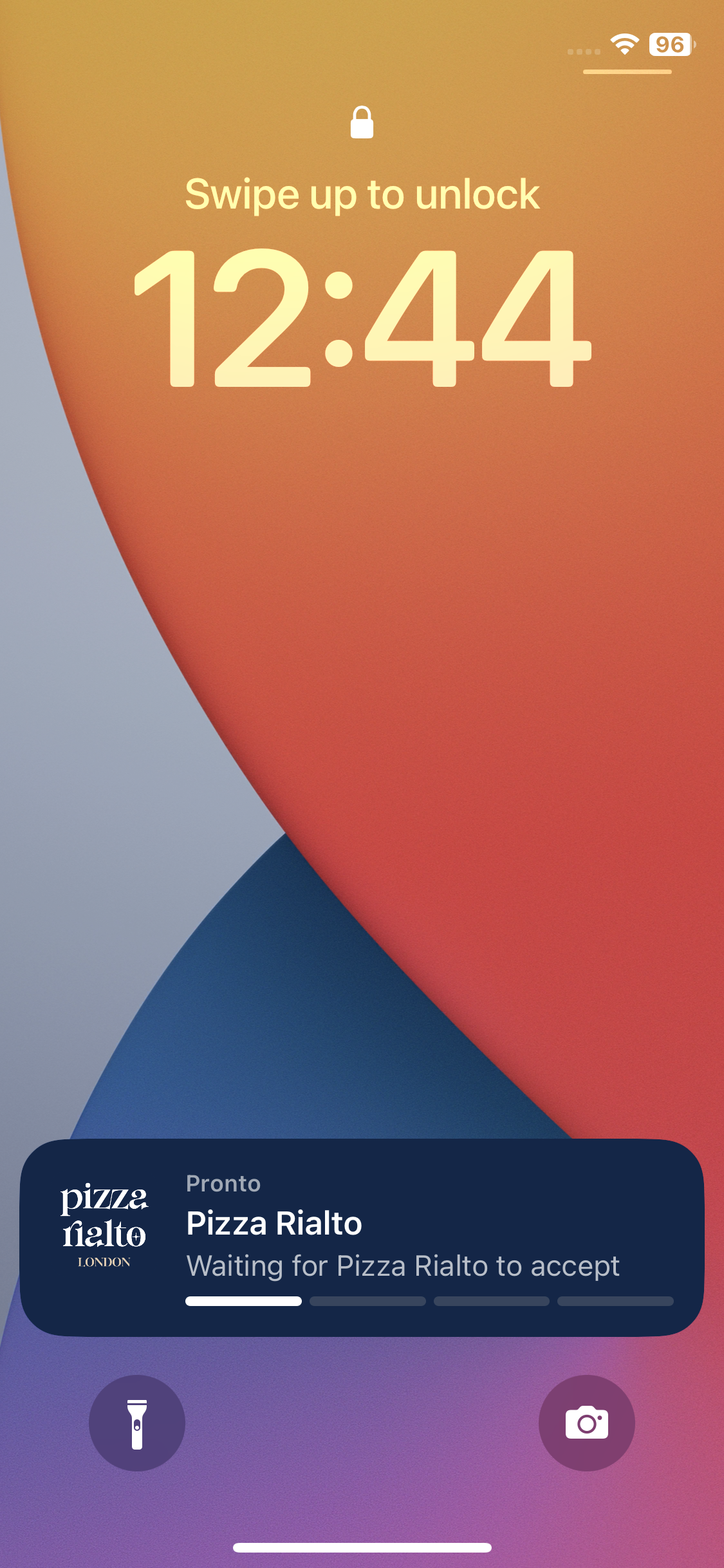
Live Activity Widgets are now available in the customer app for Apple devices only. This gives your customers a quick, at-a-glance view of their order without opening the app. Once an order is placed, the widget keeps customers up to date as it progresses, helping to reduce order queries and making the ordering experience feel more seamless.
Setting up the Live Activity Widget (Apple)
Before Live Widgets can be displayed to your customers, each marketplace will need to complete the required Apple configuration.
-
Visit https://developer.apple.com/account/resources/identifiers/list
-
Select Identifiers
-
Select the marketplace/brand/app you want to update to include the Live Activity Widget
-
Copy the Bundle ID
-
We copy the Bundle ID because the Live Activity Widget ID you are about to create has to have its prefix match your app's Bundle ID exactly.
-
Creating the App Group
-
Select Identifiers
-
Create a new App Groups, by selecting the Plus Icon
-
Make sure App Groups is the selected option
-
-
Continue
-
Enter a Description; e.g. Redbox App Group, or <APP_NAME> App Group
-
Enter an Identifier; e.g. group.com.redbox, or group.com.<APP_NAME>
-
groupis a prefix that is automatically added by Apple -
No symbols, e.g. replace & with ‘and’
-
-
Continue
-
Register
Creating the Live Activity Widget App ID
-
Select Identifiers
-
Create a new App ID, by selecting the Plus Icon
-
Make sure App IDs is the selected option
-
-
Continue
-
Select Type; App
-
Continue
-
Enter a Description; e.g. Redbox OrderTrackingWidget, or <APP_NAME> OrderTrackingWidget
-
Enter a Bundle ID; prefix it with the Bundle ID you copied earlier. Then add
.OrderTrackingWidgetto the end. E.g. com.redbox.OrderTrackingWidget or <Bundle ID>.OrderTrackingWidget-
The prefix has to match the Bundle ID.
-
The suffix has to match
.OrderTrackingWidget -
Make sure Explicit is selected
-
-
Under Capabilities
-
Select App Groups so it is Enabled
-
Continue
-
Register
Linking the App and the Live Activity Widget App ID
-
Select Identifiers
-
Select the marketplace/brand/app you want to update
-
Under Capabilities
-
Select App Groups so it is Enabled
-
Configure
-
Select the App Group you created
-
Continue
-
Save
-
Confirm
-
This is for the Modify App Capabilities dialogue that appears.
-
-
Select the OrderTrackingWidget App Id
-
Under Capabilities, find App Groups.
-
Configure
-
Select the App Group you created
-
Continue
-
Save
-
Confirm
-
This is for the Modify App Capabilities dialogue that appears.
-