
Only available for customers using Web and Mobile v6.3+
Only users with Marketplace User access and above have access to moderate and respond to reviews, and to set the review settings at the outlet level.
Users with Business User or Outlet User access have access to respond to review comments.
The Customer Reviews feature allows customers to rate their completed orders and share feedback on their experience. Reviews provide valuable feedback to outlets, helping them understand what they're doing well and identify areas for improvement. Customer Reviews also help other customers make informed decisions by showcasing the quality of an outlet's food/products and service based on real customer experiences.
How Reviews Work
When customer reviews are available on the marketplace, the ‘Leave a Review’ button will be visible on complete orders. When selected, the ‘Leave a Review’ sheet will be visible:
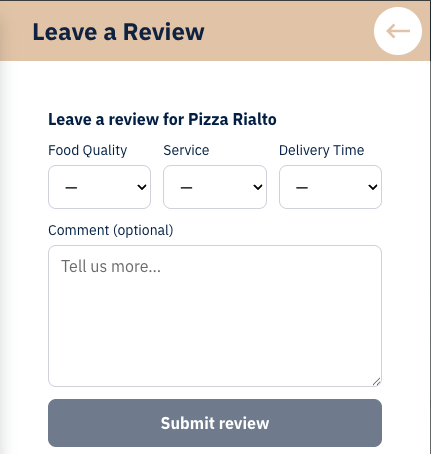
Once an order has been completed, customers can leave a review via the individual order on the Order History section of My Account. This includes:
-
A rating (required) from 1-5 for:
-
Food/Product Quality
-
Service
-
Delivery Time (Where applicable)
-
-
An optional comment (When enabled)
These ratings are used to calculate the overall outlet rating displayed across the website and apps.
Customer Reviews Settings
Customer Reviews includes two outlet-level settings that allow marketplaces to control how reviews are displayed and managed.
How to locate Outlet Review Settings: Redbox → Business → Select a Business → Select Outlets → Select an Outlet → See Reviews
Allow Customer Review Text
When enabled, customers can include written comments alongside their star ratings.
If disabled, customers can still submit star ratings, but they will not be able to add any written feedback.
Allow Business Replies to Reviews
When enabled, outlets can respond to approved customer reviews by leaving a public reply. This allows outlets to thank customers for their feedback or address any concerns that have been raised.
If disabled, outlets will not be able to post replies to customer reviews.
Adding the Leave Review Link to Completed Order Message Template
How to locate Message Templates: Redbox → Marketplaces → Select a Marketplace → Select Messaging → Select the ‘Complete’ template
Marketplaces can add an order review link to the completed order template, using the ‘order.reviewLink’ variable available in the ‘Complete’ message template. This provides customers with a direct link to leave a review for their order. It helps increase review submissions by making the process quick and accessible.
Managing Reviews
Where to Find Reviews
Reviews are accessible from multiple areas within Management:
-
Customers → Reviews - A list of all reviews.
-
Customers → Individual Customer → Reviews - A list of all reviews made by this customer.
-
Business → Outlets → Select an outlet → Reviews - A list of all reviews for this outlet.
-
Orders → Individual Order - An overview of the review for this order.
Review Statuses
Reviews go through a moderation process before being visible to the customers.
-
Pending
-
The review has been submitted and is pending moderation.
-
Not visible on website or app.
-
Not included in the overall outlet rating.
-
-
Rejected
-
The review has been declined by a moderator.
-
Not visible on website or app.
-
Not included in the overall outlet rating.
-
-
Approved
-
The review has been approved.
-
Visible on website and app.
-
Included in overall outlet rating.
-
Replying to Reviews
If a customer includes a comment in their review submission and ‘Allow Business Replies to Reviews’ is enabled, a user can respond directly.
Replies can be used to:
-
Address customer feedback.
-
Resolve issues.
-
Engage with customers.
Replies will appear alongside the review once it is approved.
Notifications
-
Outlets will receive an email notification (if they are not logged into Redbox) when a new review is submitted, allowing outlets to respond to customer feedback promptly.
-
Marketplace Admin, Marketplace User, Marketplace Admin, and Business Users will receive an email notification every day at 10 am if there are any reviews awaiting approval.
Where Reviews Appear
Approved reviews and ratings are displayed on the website in the following areas:
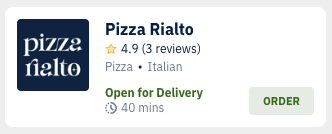
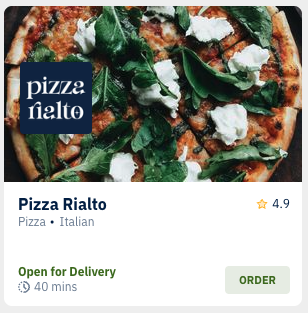
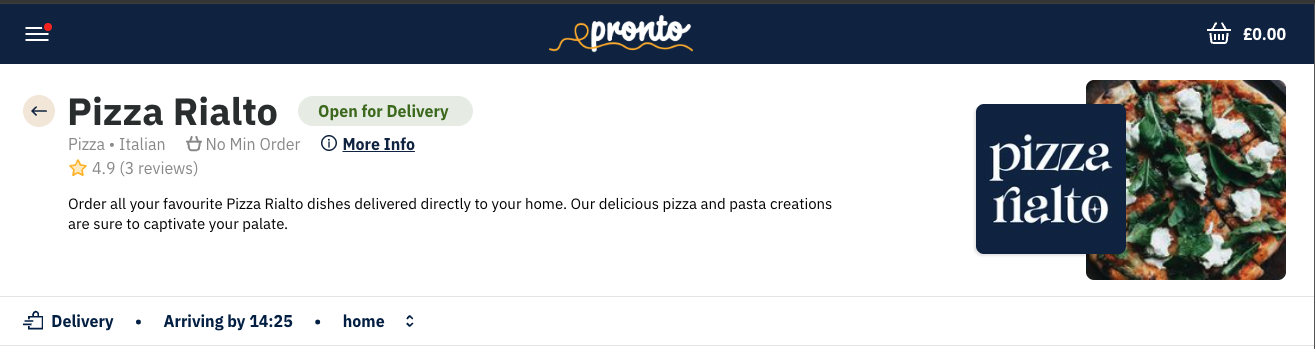
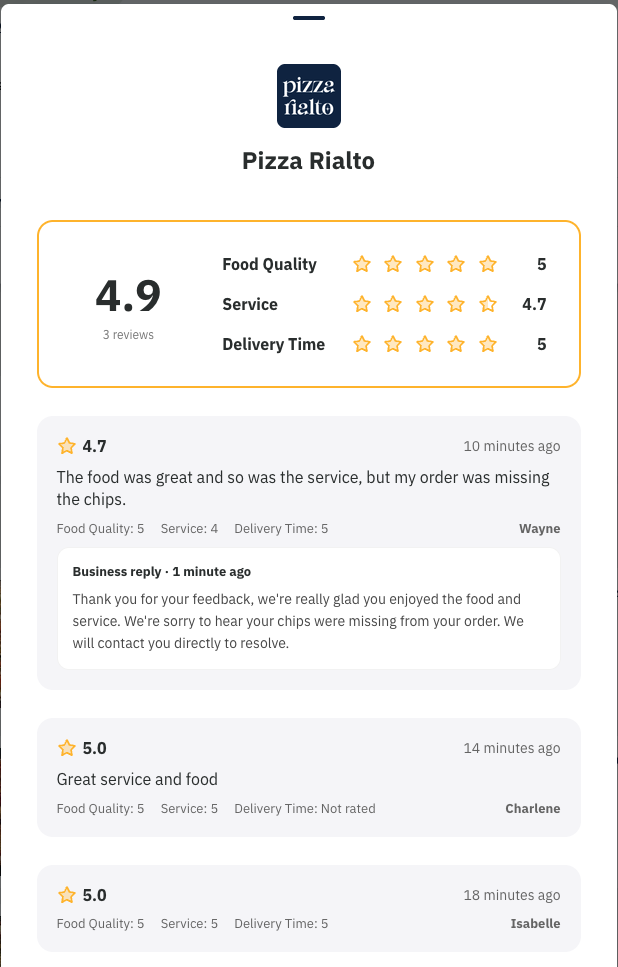
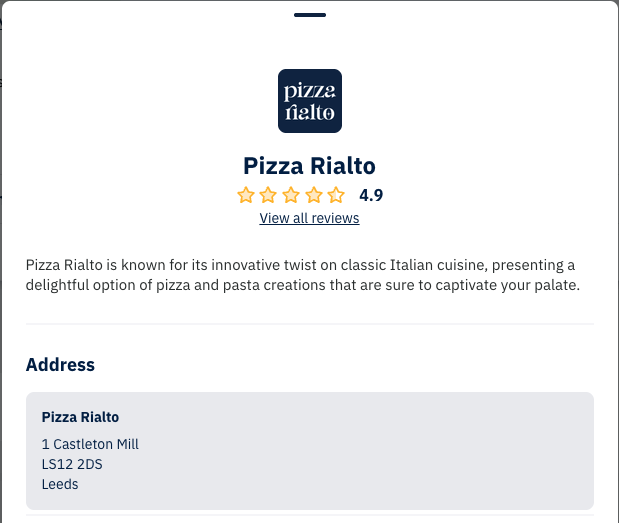
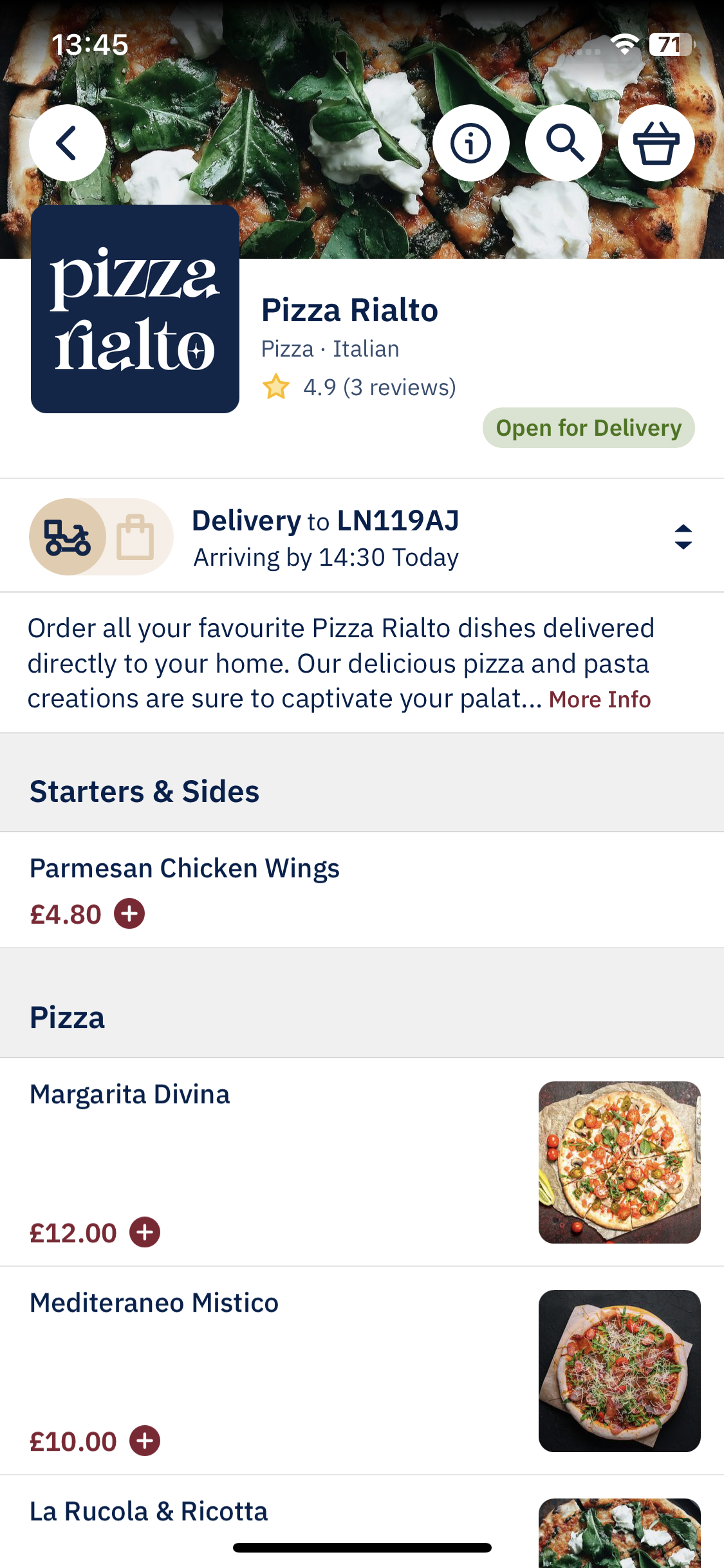
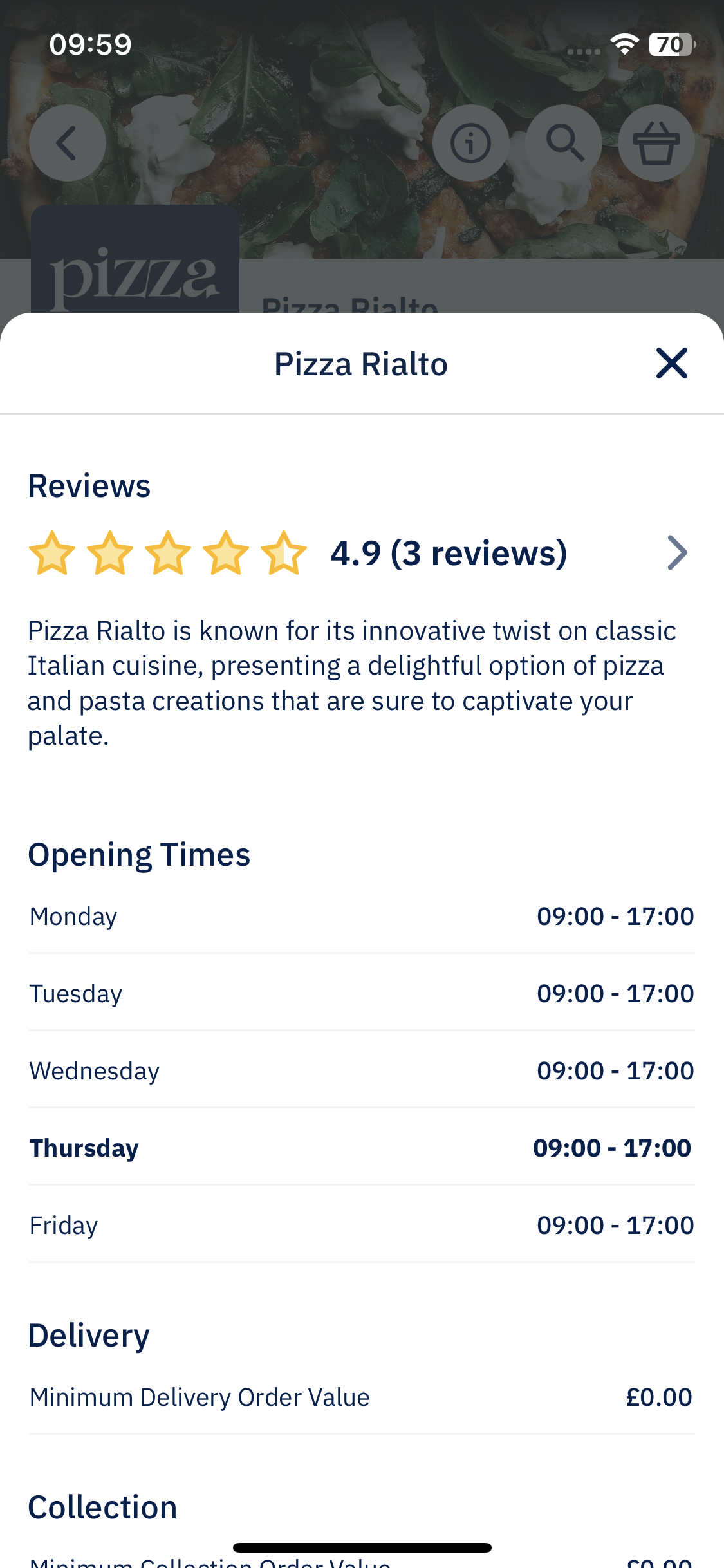
Approved reviews and ratings are displayed on the app in the following areas:
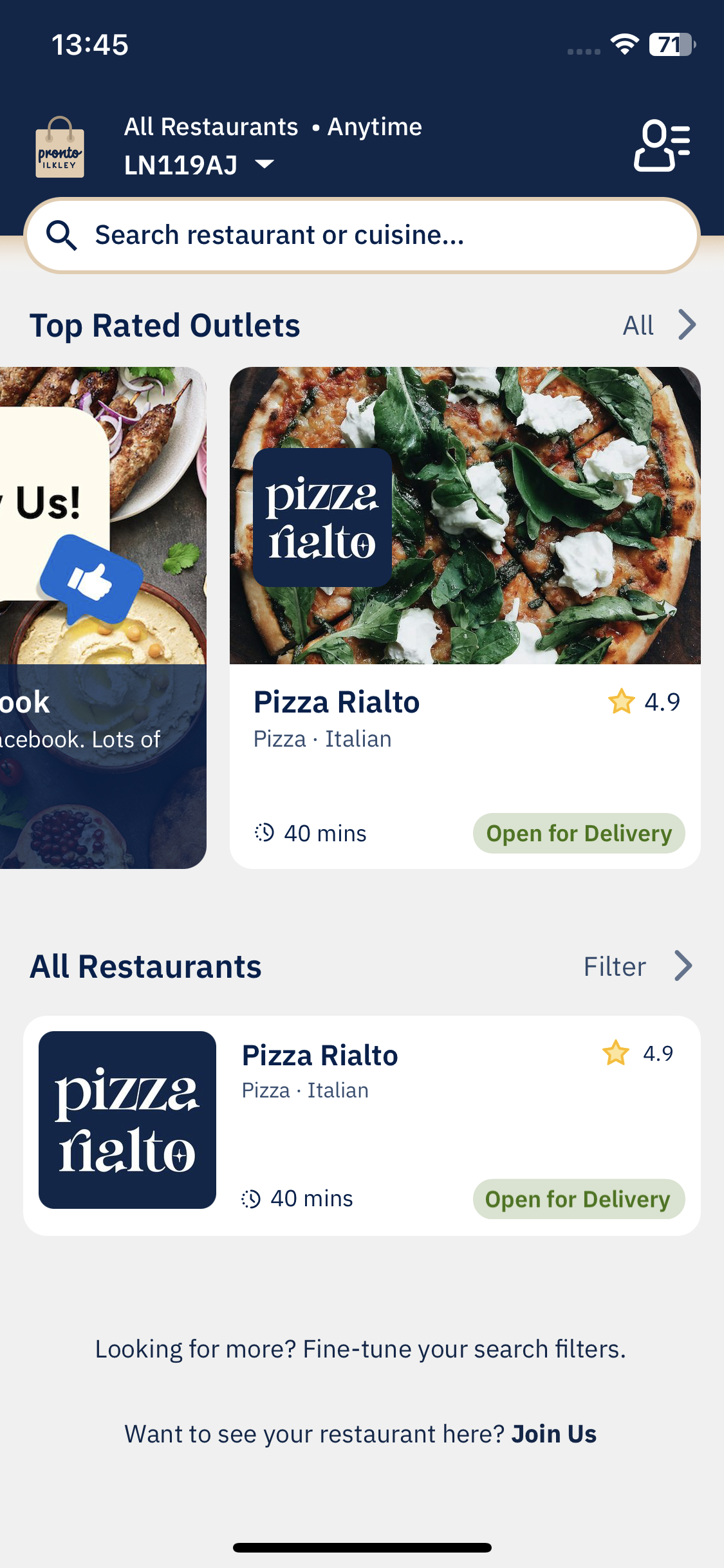
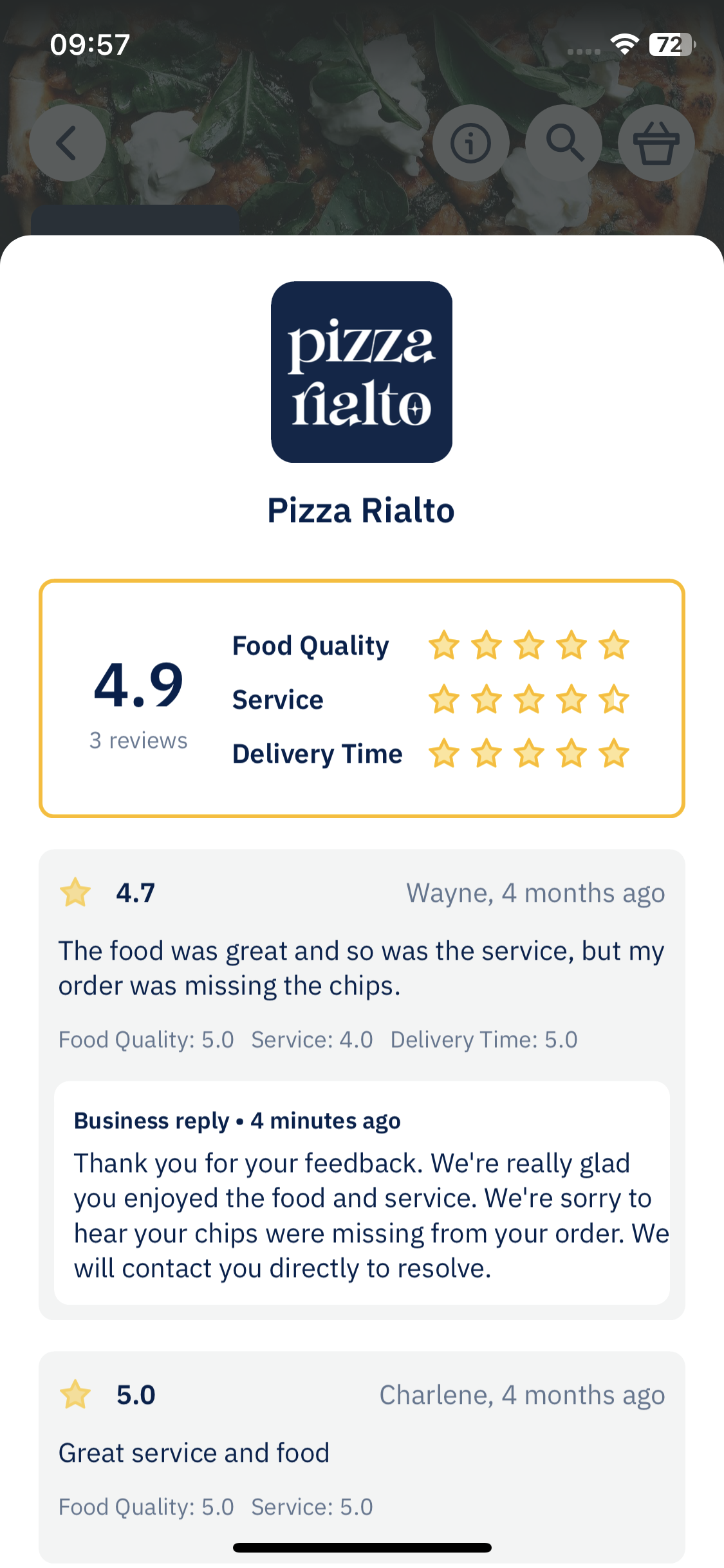
Best Practices
-
For Marketplaces:
-
Add the order review link to the completed order messaging template.
-
Review and moderate submissions regularly.
-
Apply consistent approval standards.
-
-
For Outlets:
-
Monitor Notifications for new reviews.
-
Respond to customer feedback promptly.
-
Keep replies professional and helpful.
-
Use feedback to improve service and operations.
-